Create Stunning AI Videos from Text Prompts: A Complete Beginner Guide
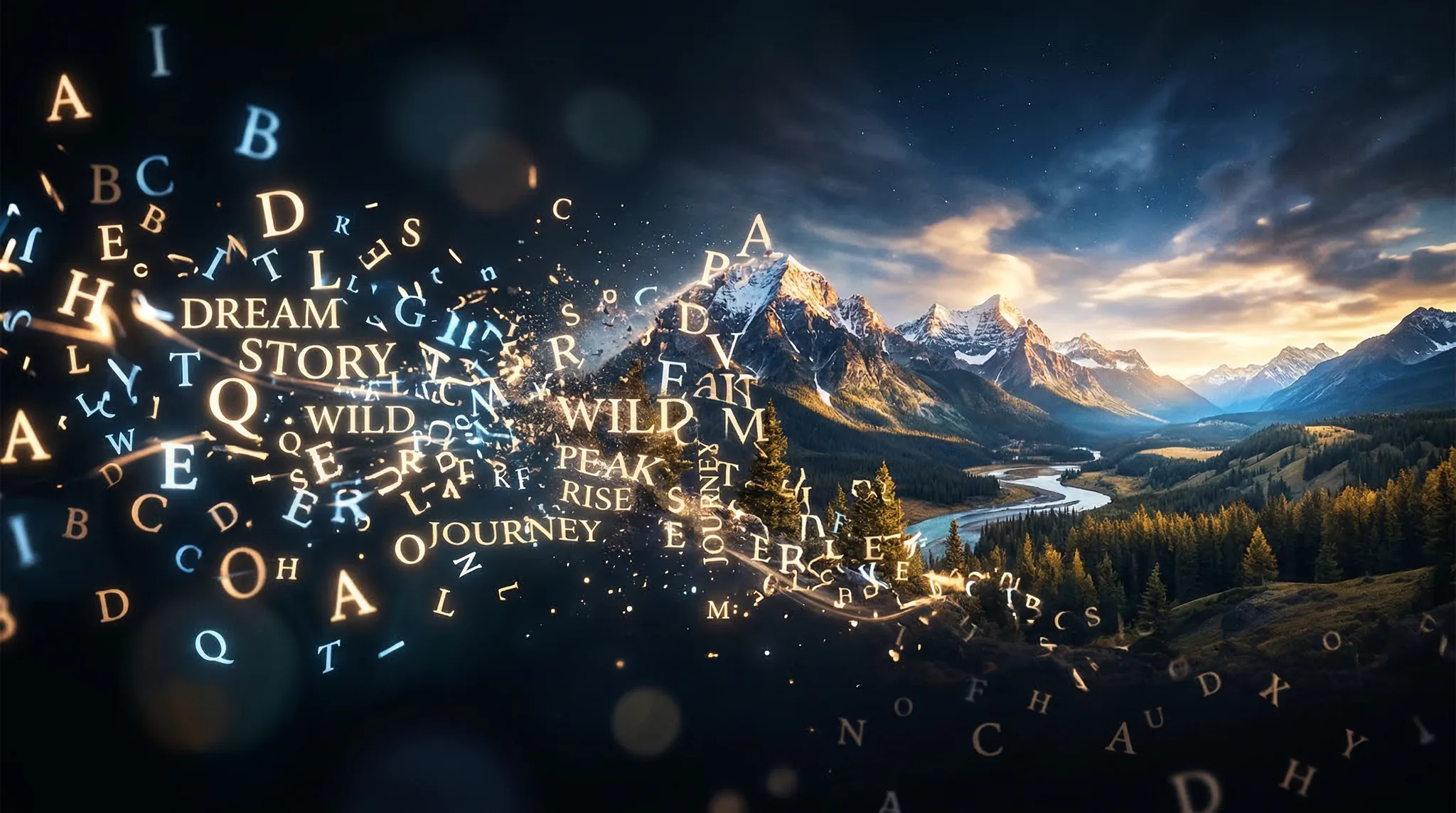
The ability to create AI video from text has transformed from a futuristic concept into an accessible reality. What once required a full production crew — camera operators, lighting technicians, actors, editors — can now be accomplished by typing a description and clicking generate. Whether you want to produce marketing content, social media clips, or creative short films, text-to-video AI puts professional-quality video production within reach of anyone with a clear vision and a well-written prompt.
This beginner guide walks you through the entire process from understanding how text-to-video works to writing your first prompt and refining your results into polished, shareable content.
How Text-to-Video AI Actually Works
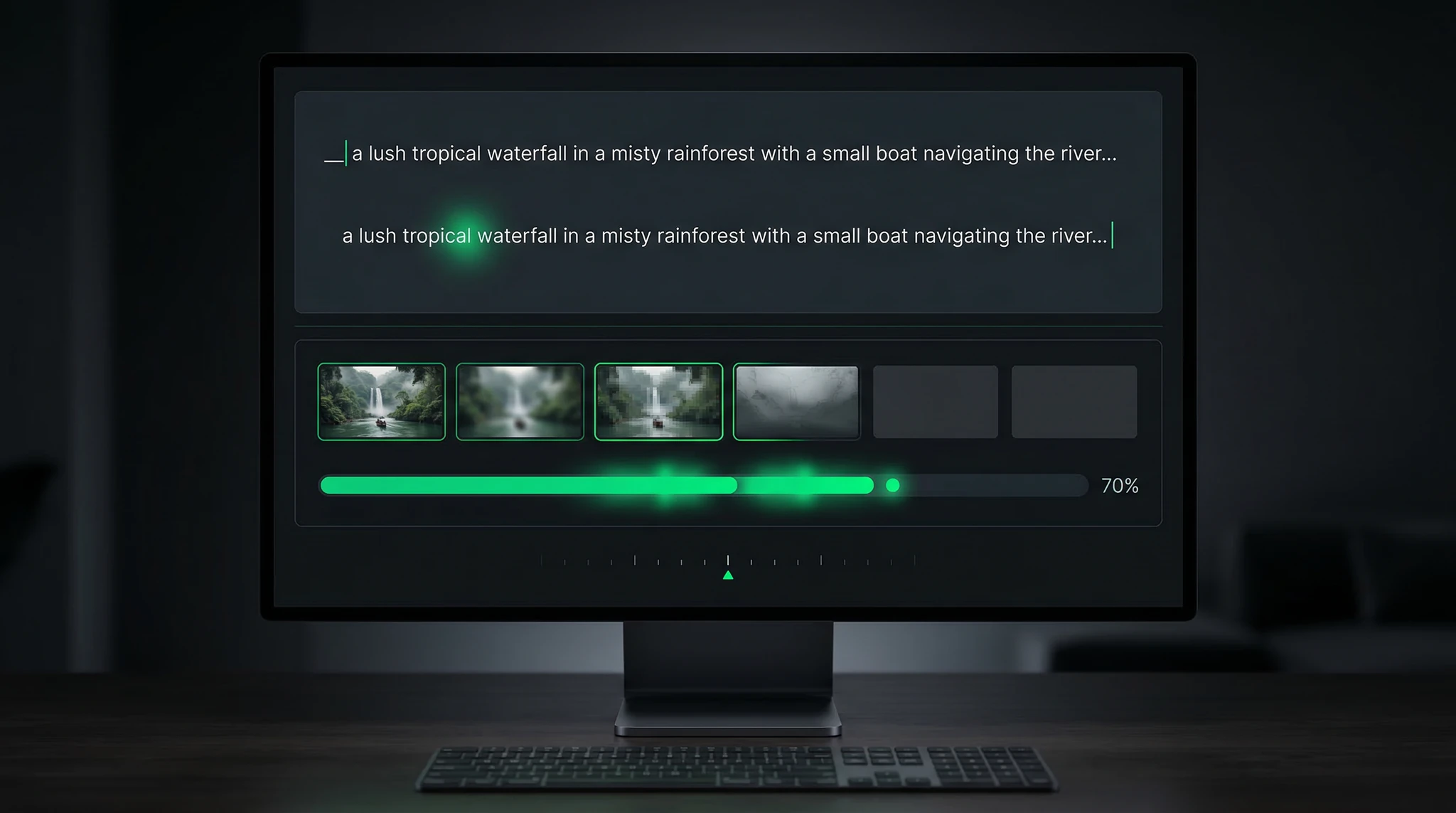
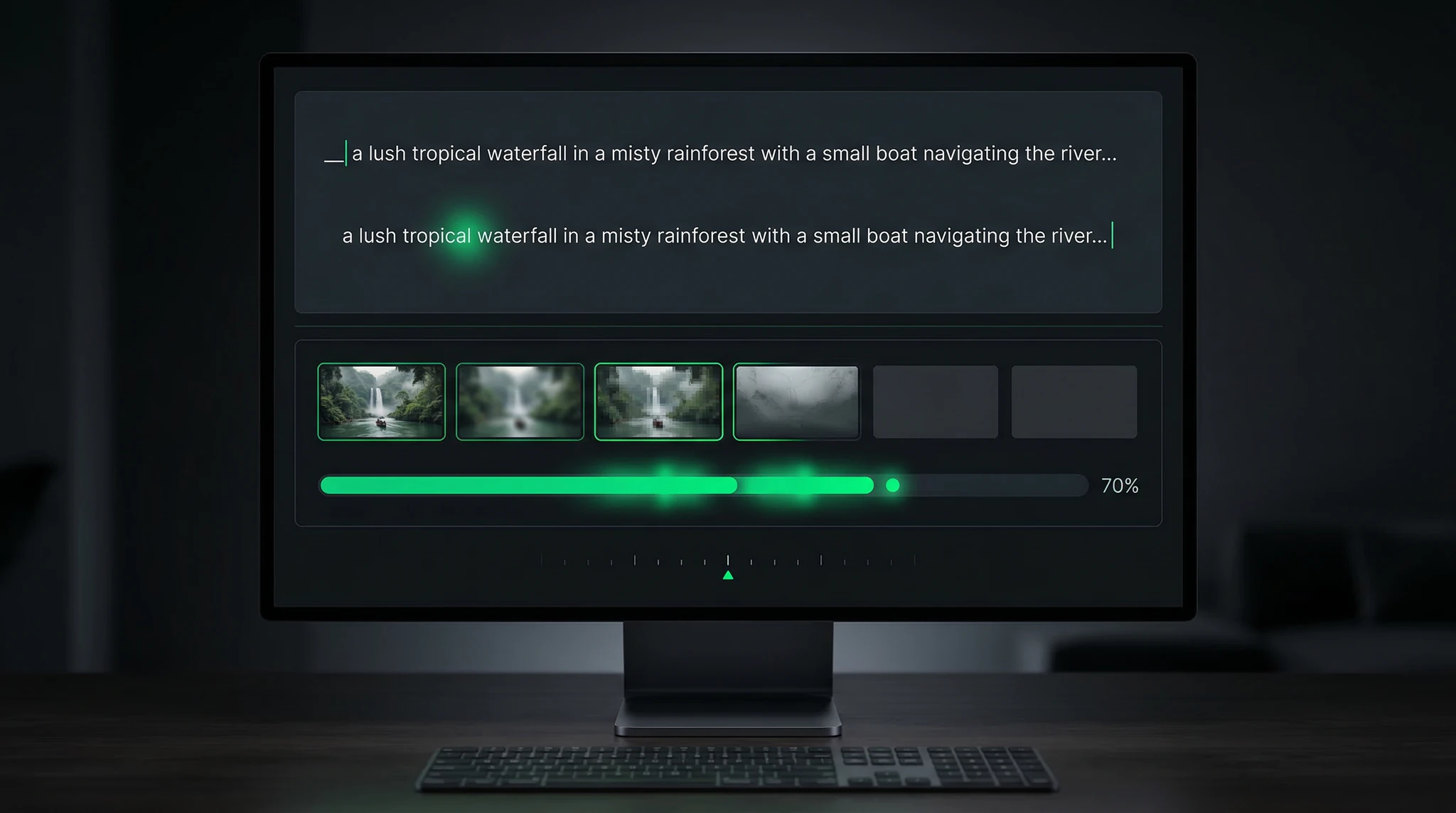
Before you start generating, it helps to understand the basic mechanics. Text-to-video AI models have been trained on millions of video clips paired with text descriptions. When you write a prompt, the model interprets your words and generates a sequence of frames that match your description, producing a cohesive video clip.
Modern models like Sora and Veo handle several critical aspects automatically:
Temporal coherence: Objects and characters remain consistent across frames, so a person walking does not suddenly change appearance mid-stride.
Physics simulation: Water flows downhill, smoke rises, fabric drapes naturally. The model understands basic physical behaviors.
Camera motion: You can specify camera movements — panning, tracking, zooming — and the model simulates them convincingly.
Lighting consistency: Shadows and highlights remain stable throughout the clip, creating a believable visual environment.
The result is typically a short clip ranging from 3 to 15 seconds, depending on the model and settings you use.
Step 1: Choose Your AI Video Generation Tool
The first decision is selecting the right platform. Each tool has different strengths and tradeoffs.
Vidzy provides access to multiple leading video generation models through a single interface. This means you can experiment with different models — including Sora and Veo — without creating separate accounts on each platform. For beginners, this is the most efficient starting point because you can compare results side by side.
When choosing a tool, consider these factors:
Output quality: How realistic and smooth are the generated videos?
Prompt control: How closely does the output match your text description?
Generation speed: How long do you wait for each clip?
Cost per generation: How many clips can you create within your budget?
Step 2: Write Your First Text-to-Video Prompt
Writing a video prompt is different from writing an image prompt. You need to describe not just what the scene looks like, but what happens in it — the movement, the changes, the progression from start to finish.
A strong video prompt has four components:
Scene description: What does the viewer see? Describe the setting, subjects, and key visual elements.
Action/Motion: What happens during the clip? This is the most important element that separates video prompts from image prompts.
Camera behavior: How does the camera move? Is it static, panning, tracking, or zooming?
Atmosphere and style: What is the visual mood? Cinematic, casual, documentary, dreamy?
Here is a well-structured beginner prompt:
A golden retriever runs through a sunlit meadow of wildflowers, tongue out and ears flapping. The camera tracks alongside at the dog’s pace. Warm afternoon sunlight, shallow depth of field, cinematic color grading with rich greens and golden tones. Slow motion, shot on 35mm film.
Compare that to a weak prompt:
A dog in a field.
The difference in output quality between these two prompts is enormous. Specificity is everything.
Step 3: Master the Five Essential Prompt Elements
To consistently create AI video from text that looks professional, you need to understand and include five key elements in every prompt.
Element 1: Subject Detail
Describe your subject with enough specificity that the model cannot misinterpret it. Instead of “a woman,” write “a woman in her late 20s with dark curly hair, wearing a white linen shirt and denim jeans.” The more precise your subject description, the more control you have over the output.
Element 2: Action and Motion
This is what makes video prompts unique. Use active, dynamic verbs. Instead of “a car on a road,” write “a red vintage Porsche 911 accelerates along a winding coastal highway, tires gripping the asphalt through each curve.” Describe the motion through the entire duration of the clip.
Element 3: Camera Direction
Specify how the camera behaves as if you were directing a real camera operator:
Static/locked off: “Camera remains stationary on a tripod”
Tracking: “Camera follows the subject from the side”
Dolly in: “Camera slowly pushes forward toward the subject”
Crane/aerial: “Camera rises upward revealing the landscape below”
Handheld: “Slight handheld camera movement for a documentary feel”
Orbit: “Camera slowly orbits around the subject at eye level”
Element 4: Lighting and Time of Day
Lighting sets the mood for the entire clip. Specify the time of day and quality of light:
Blue hour twilight with neon signs reflecting on wet pavement, creating pools of colored light on the street surface.
Harsh midday sun casting sharp shadows, bright and high-contrast, documentary style.
Element 5: Cinematic Style
Reference specific visual styles or filmmaking techniques to guide the overall look:
“Shot on 35mm Kodak film stock” — warm, slightly grainy, organic feel
“IMAX documentary style” — ultra-wide, sharp, grand scale
“Handheld indie film aesthetic” — intimate, raw, authentic
“Drone footage style” — smooth aerial perspective
“Slow motion at 120fps” — dramatic, fluid, emphasizes detail
Step 4: Start with These Beginner-Friendly Prompts
Use these proven prompts as your starting point. Each one is designed to produce reliable results even on your first attempt.
Nature scene:
A serene mountain lake at sunrise, mist slowly rising from the water surface, pine trees reflected in the still water, a single canoe drifts gently. Camera slowly pans from left to right, capturing the full panorama. Golden morning light, cinematic wide angle, National Geographic documentary style.
Urban scene:
A busy Tokyo street crossing at night, crowds of people walking in all directions, neon signs glowing in Japanese text, light rain creating reflections on the asphalt. Camera positioned at street level looking up, time-lapse speed with light trails from passing cars. Cyberpunk color palette with teals and magentas.
Food and product:
Close-up of melted chocolate being slowly poured over a stack of fresh strawberries on a white ceramic plate, the chocolate coating each berry and dripping down the sides. Camera locked off on a tripod, macro lens perspective, warm studio lighting from above, commercial food advertising style, slow motion.
Simple character:
A man in a tailored navy suit walks confidently down a long hallway with floor-to-ceiling windows, afternoon sunlight casting long geometric shadows on the polished concrete floor. Camera tracks backward in front of him at walking pace. Cinematic anamorphic lens flare, shallow depth of field, corporate brand film aesthetic.
Step 5: Refine Your Results Through Iteration
Your first generation will rarely be perfect, and that is completely normal. The key to getting great results is structured iteration.
Step A: Generate your initial clip and evaluate what works and what does not.
Step B: Identify the specific elements that need improvement. Is the camera motion wrong? Is the lighting too flat? Is the action too fast or too slow?
Step C: Modify only the relevant part of your prompt. Do not rewrite the entire prompt — change one or two elements at a time so you can track what each modification does.
Step D: Regenerate and compare. After 3-4 iterations, you will typically arrive at a result you are happy with.
Pro tip: Keep a log of your prompts and results. Note which phrases produced the best outcomes. Over time, you will build a personal vocabulary of reliable prompt components.
Step 6: Export and Use Your Generated Videos
Once you have a clip you are happy with, here is how to use it effectively:
Social media: AI-generated clips work excellently for Instagram Reels, TikTok, and YouTube Shorts. They grab attention in the scroll and can be combined with text overlays and music in any video editor.
Marketing: Use clips as B-roll footage in product demos, website hero sections, or advertisement backgrounds.
Presentations: Replace static slides with dynamic video backgrounds for a more engaging presentation.
Storyboarding: Generate rough clips to previsualize scenes before committing to a full production shoot.
For best results, download clips in the highest available resolution and add any text, music, or transitions in a separate editing tool.
Common Mistakes Beginners Make
Writing prompts that are too short. “A sunset” will produce something generic. “A fiery sunset over the Pacific Ocean, camera slowly tilting down from the orange sky to reveal waves crashing against jagged sea rocks, golden hour light, shot on RED camera, cinematic color grading” gives the model enough information to create something specific and compelling.
Describing too many actions. In a 5-second clip, you can realistically show one or two actions. Trying to describe a complex sequence with multiple scene changes will result in confused, incoherent output. Keep it focused.
Ignoring camera direction. If you do not specify how the camera moves, the model will choose randomly. Sometimes you get lucky. Usually you do not. Always include camera behavior in your prompt.
Expecting perfection on the first try. Even experienced users rarely get their ideal output on the first generation. Budget for 3-5 generations per final clip and treat each one as a learning opportunity.
Frequently Asked Questions
How long are AI-generated videos?
Most current models generate clips between 3 and 15 seconds. These are best used as short-form content, B-roll footage, or building blocks that you combine in a video editor.
Can I control the resolution and frame rate?
Yes. Platforms like Vidzy let you select resolution and aspect ratio before generation. Frame rate is typically influenced by style keywords in your prompt, such as “slow motion at 120fps” or “24fps cinematic.”
Do I need to know video editing to use text-to-video AI?
Not to generate clips. However, basic video editing skills will help you combine multiple clips, add music, and apply text overlays to create finished content.
What subjects work best for beginners?
Nature scenes, urban landscapes, food close-ups, and simple single-subject actions are the most reliable for beginners. Complex multi-character interactions and dialogue-driven scenes are more challenging.
How much does it cost to create AI video from text?
Costs vary by platform and model. Vidzy uses a credit-based system where each generation costs a set number of credits. Start with the free tier to experiment before committing to a paid plan.
Start Creating Your First AI Video
Learning to create AI video from text is one of the most valuable creative skills you can develop right now. The technology is improving rapidly, costs are dropping, and the quality gap between AI-generated and traditionally-produced video continues to narrow.
Start simple. Use the beginner prompts in this guide, pay attention to what works, and iterate methodically. Within a few sessions, you will develop an intuition for prompt writing that produces consistently impressive results.
Ready to generate your first clip? Open Vidzy, choose a text-to-video model, and type your first prompt. Your creative possibilities just expanded enormously.
Elena Vasquez is a digital marketing consultant specializing in AI-powered content for small businesses. She helps brands leverage AI video and image tools to create professional marketing assets on any budget. She writes about use cases, social media strategies, and practical AI tutorials.
Master Nano Banana 2: The Complete Tutorial for Photorealistic AI Images Nano Banana 2 is quickly becoming one of the most talked-about AI image models in the creative community, and for good reason. This model delivers stunningly photorealistic outputs with a level of detail and coherence that rivals much larger, more resource-intensive generators. Whether you […]
Create High-Converting AI Social Media Ads: A Step-by-Step Tutorial Social media advertising is a visual arms race. You are competing against thousands of other ads in your audience’s feed, and you have less than two seconds to stop their scroll. The brands winning this battle are the ones producing the most compelling creative at the […]
Build a Complete AI Content Creation Workflow from Ideation to Publishing Creating content with AI is easy. Creating content with AI systematically — in a way that is repeatable, scalable, and consistently high-quality — is where most creators and teams fall short. An AI content workflow transforms scattered experimentation into a structured production pipeline that […]
Elena Vasquez
11 min read
Your Next Video Is 30 Seconds Away
Download Vidzy free, pick a template, and create your first video right now.