

Transform Any Photo into a Dynamic Video Using AI Image-to-Video
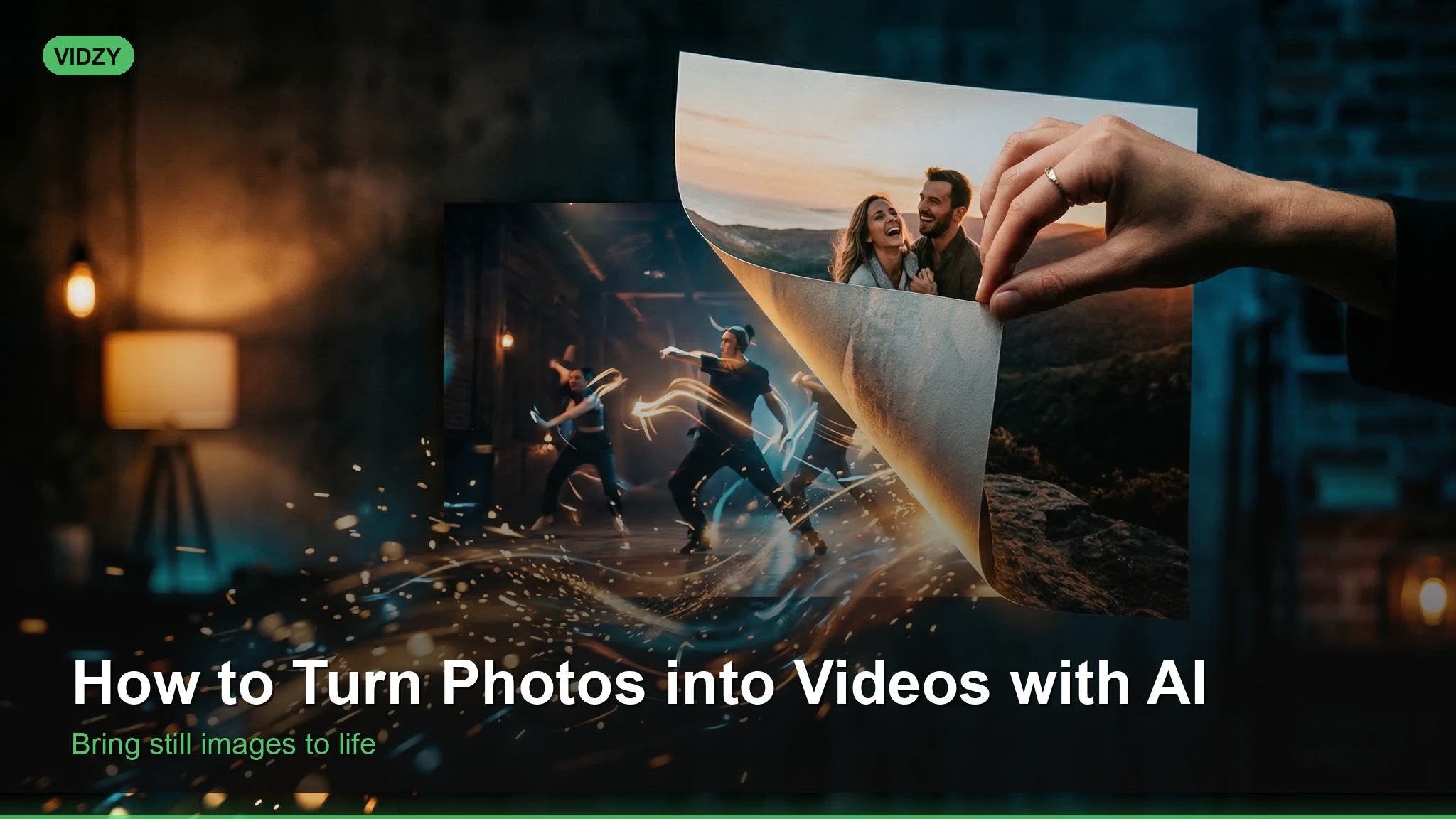
You have that perfect photo — a product shot, a landscape, a portrait, a piece of art — and you wish it could come to life. Until recently, animating a still image required motion graphics expertise, expensive software, and hours of frame-by-frame work. Now, AI image-to-video technology lets you turn photos into video with AI in seconds, transforming static images into dynamic clips with realistic motion, camera movement, and environmental effects. This tutorial walks you through the complete process, from preparing your source image to writing the perfect animation prompt and optimizing your output for different platforms.How AI Image-to-Video Works
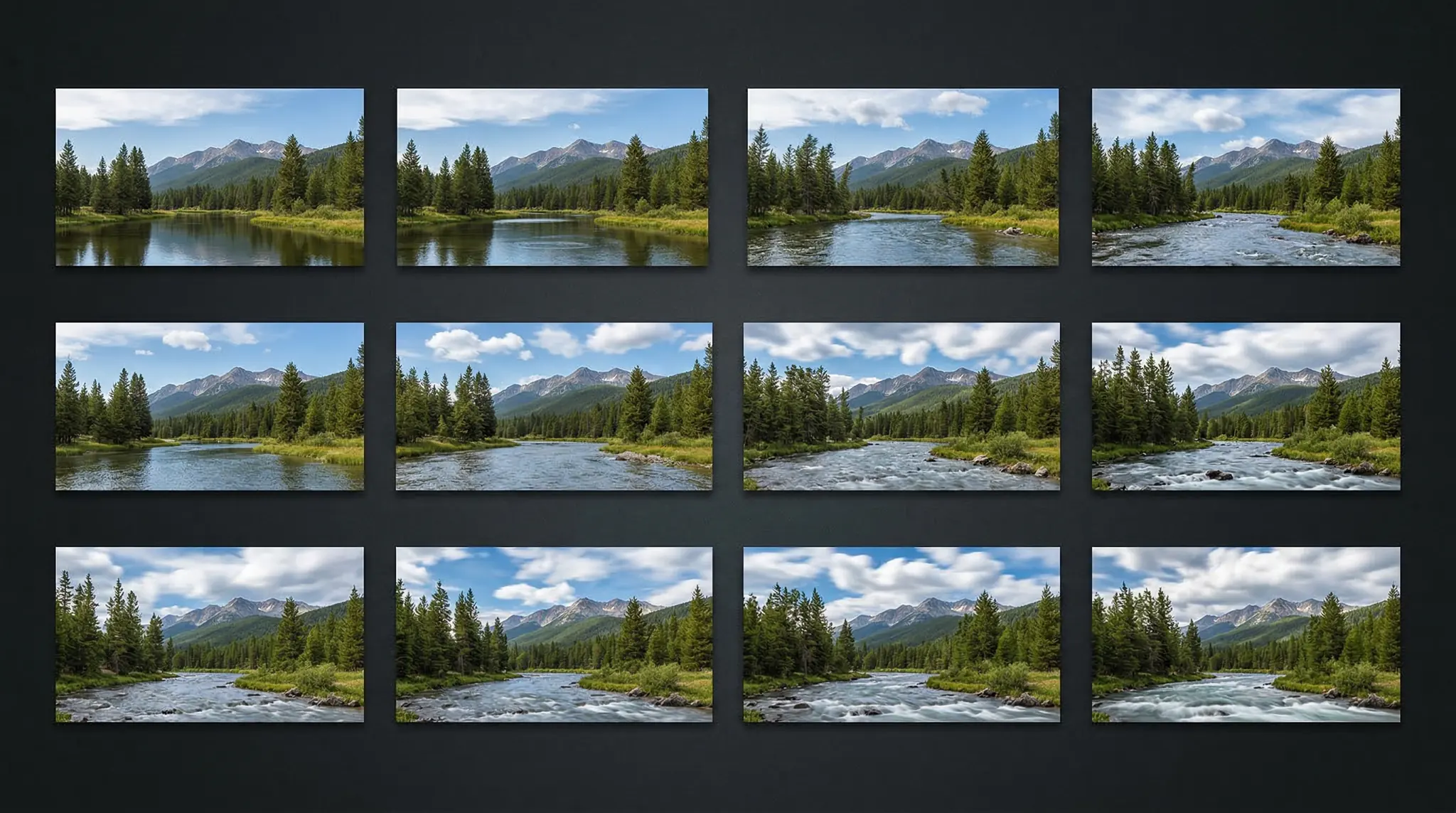
Image-to-video AI models analyze your input photograph and generate new frames that extend the image in time. The model understands what elements in your image are likely to move and how they would naturally animate. For example, if you upload a photo of a waterfall:- The water will flow and cascade
- Mist will drift and dissipate
- Surrounding trees will sway gently
- The lighting will remain consistent with the original photo
Step 1: Choose the Right Source Image
Not all photos convert to video equally well. The best source images have these characteristics: Implied motion: Images that suggest movement convert more naturally. A dog mid-leap, waves about to crash, a dancer in position, hair caught in wind — these give the AI clear signals about what motion to generate. High resolution: The more detail in your source image, the more the AI has to work with. Aim for at least 1024×1024 pixels. Blurry or heavily compressed images produce lower quality video output. Clear subject separation: Images where the subject is clearly distinct from the background convert more cleanly. Cluttered scenes with overlapping elements can confuse the model about what should move and what should stay static. Natural lighting: Photos with consistent, realistic lighting convert better than heavily filtered or artificially lit images. The AI needs to maintain the same lighting across generated frames. Images that tend to work poorly:- Heavily edited or collaged images with unnatural compositing
- Text-heavy graphics or screenshots
- Very dark or very overexposed images with lost detail
- Abstract patterns without clear subjects
Step 2: Access Image-to-Video in Vidzy
Vidzy provides access to leading image-to-video models including Veo and Sora through a single interface.- Open Vidzy and navigate to the Video Generator.
- Select Image to Video mode.
- Upload your source photo from your camera roll or files.
- Write a motion prompt describing how you want the image to animate.
- Select your preferred aspect ratio and duration.
- Hit generate and wait for your video.
Step 3: Write Effective Motion Prompts
When you turn photos into video with AI, your text prompt does not describe the scene — the image already does that. Instead, your prompt describes the motion — what changes, what moves, how the camera behaves. The golden rule: Describe only what changes from the source image, not what already exists in it. Good motion prompt:The woman slowly turns her head toward the camera and smiles, her hair gently moving in a light breeze, warm afternoon sunlight. Camera remains static.Bad motion prompt:
A beautiful woman with long brown hair standing in a garden wearing a white dress with flowers in the background and sunlight.The bad prompt re-describes the image instead of describing motion. The model already sees all of that information in your photo.
Step 4: Master the Five Types of Photo Animation
There are five fundamental ways to animate a still photo. Understanding each type helps you write precise motion prompts.Type 1: Subject Motion
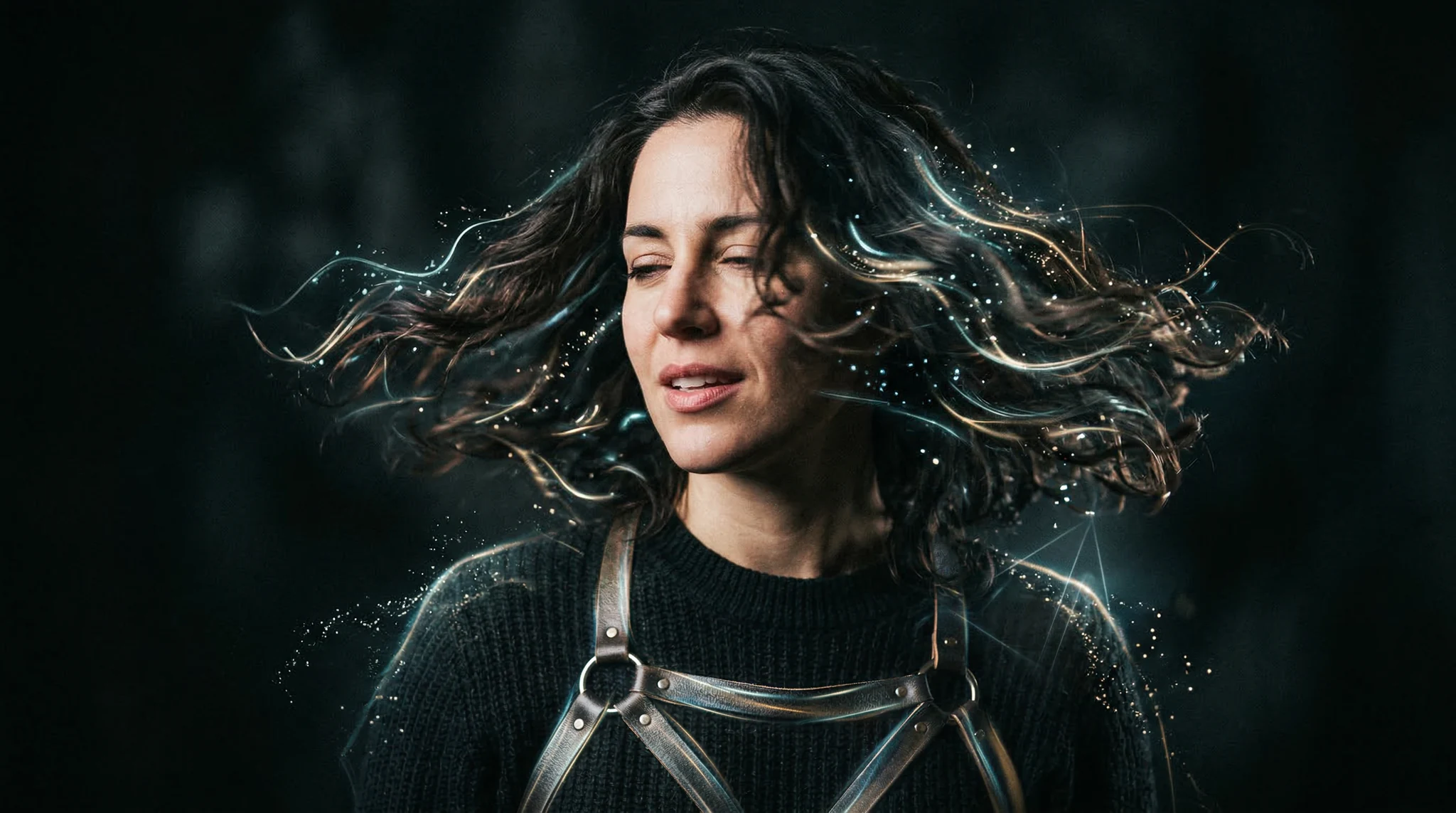
The subject in the image moves while the background stays relatively static.The dog leaps forward and runs toward the camera, ears bouncing with each stride, tail wagging. Background remains steady.Best for: Portraits, pet photos, product demos, character animation.
Type 2: Environmental Motion
The subject remains still while the environment around them moves.Wind picks up, blowing leaves across the path, clouds drift slowly overhead, tree branches sway gently. The person remains still, looking into the distance.Best for: Landscapes, architectural photos, establishing shots, atmospheric content.
Type 3: Camera Motion
Everything in the scene stays still, but the camera moves to create a dynamic shot.Camera slowly dollies forward toward the subject, creating a gradual zoom effect. Everything in the scene remains static.Other camera motions to try:
- “Camera pans slowly from left to right”
- “Camera tilts upward revealing the sky”
- “Camera orbits slowly around the subject”
- “Camera pulls backward revealing more of the scene”
- “Subtle parallax effect as camera shifts slightly”
Type 4: Combined Motion
Both the subject and camera move, creating the most dynamic and cinematic results.The person walks forward confidently while the camera tracks backward at the same pace, maintaining framing. Background buildings pass by with parallax. Wind moves their jacket slightly.Best for: Cinematic content, music videos, brand films, dramatic short-form content.
Type 5: Atmospheric Effects
Subtle environmental effects are added to create mood without significant subject or camera motion.Gentle rain begins to fall, creating small splashes on the ground, steam rises slowly from the coffee cup, warm interior light flickers subtly like candlelight.Best for: Mood content, social media posts, cinemagraph-style loops, ambient background videos.
Related: prompt keywords cheat sheet
Step 5: Use These Proven Prompt Templates
Here are battle-tested motion prompts organized by common source image types: Portrait photo:Subject blinks naturally, takes a slow breath, and turns their head slightly to the left with a gentle emerging smile, hair moves subtly. Natural lighting, cinematic. Camera static.Landscape photo:
Clouds drift slowly across the sky, water in the lake ripples gently, grass sways in a soft breeze. Camera slowly pans right, revealing more of the landscape. Golden hour atmospheric haze.Product on a table:
Camera slowly orbits around the product at table level, 45-degree arc from left to right. Subtle reflections shift on the product surface as the angle changes. Dramatic studio lighting remains consistent. Smooth, slow motion.City street:
Pedestrians begin walking, cars move through the intersection, traffic lights cycle, reflections shift on wet pavement. Camera remains at street level, locked off on tripod. Urban ambient sound ambiance. Cinematic color grading.Food photo:
Steam rises gently from the hot dish, a drizzle of sauce is poured slowly from above, fresh herbs are sprinkled and fall in slow motion. Warm overhead studio lighting. Close-up macro perspective, camera static.Art or illustration:
The illustration comes to life with subtle parallax animation, foreground elements shift slightly, background elements shift in the opposite direction creating depth. Gentle particle effects float through the scene. Dreamlike and magical.
Step 6: Optimize Duration and Timing
Most AI image-to-video models generate clips between 3 and 10 seconds. Here is how to make the most of that limited duration: For social media (3-5 seconds): Focus on one clear motion. A single head turn, one camera pan, one environmental effect. Simplicity reads best in short loops. For website backgrounds (5-8 seconds): Use subtle, ambient motion — drifting clouds, gentle water movement, soft parallax. These work best as seamless loops. For creative projects (8-10 seconds): You have room for a sequence — start with a wide camera pull, add subject motion, then let the scene settle. Think of it as a mini narrative arc. Loop-friendly prompts: If you want the video to loop seamlessly (for website backgrounds or social media), add “motion that returns to the starting position” or “cyclical motion suitable for seamless looping” to your prompt.Step 7: Combine Multiple Clips for Longer Videos
A single 5-second clip is rarely a complete piece of content. Here is how to combine multiple image-to-video generations into a cohesive longer video:- Start with 3-5 source images from the same scene, shoot, or theme.
- Generate a video clip from each image with complementary motion styles — mix camera movements, subject actions, and atmospheric effects.
- Import all clips into a video editor (CapCut, iMovie, DaVinci Resolve, or any timeline editor).
- Arrange clips in a logical sequence — wide establishing shot first, then medium shots, then close-ups.
- Add transitions — simple cross-dissolves work best between AI-generated clips. Hard cuts can be jarring if lighting or motion styles differ.
- Add music and sound effects to unify the sequence and give it professional polish.
Step 8: Troubleshoot Common Issues
Problem: The AI changes the subject’s appearance. Solution: Use a shorter motion prompt that focuses on subtle movement. The more dramatic the requested motion, the more the model needs to “invent,” which can lead to inconsistencies. “Subtle head tilt and natural blink” is safer than “turns around completely.” Problem: Motion looks jittery or unnatural. Solution: Add “smooth, fluid motion” and “cinematic slow motion” to your prompt. Reducing the complexity of the requested action also helps — one smooth movement looks better than multiple competing motions. Problem: Background warps or distorts. Solution: Specify “background remains stable and static” in your prompt. When the model tries to animate both foreground and background, backgrounds can distort. Constraining what moves prevents this. Problem: The video does not match the original photo’s colors. Solution: Include “maintain the exact color palette and lighting of the source image” in your prompt. Some models may shift colors during animation; this instruction helps prevent it.Frequently Asked Questions
What image formats work best for image-to-video AI?
JPEG and PNG are universally supported. PNG is preferred when your image has transparent elements or when you need maximum quality without compression artifacts.Can I turn photos into video AI with any image?
Most images work, but high-resolution, well-lit photographs with clear subjects produce the best results. Heavily edited collages, screenshots, and very low-resolution images may produce inconsistent output.How long are the generated videos?
Typically 3-10 seconds per generation. For longer content, generate multiple clips from different source images and combine them in a video editor.Can I control the speed of the animation?
Yes, through your prompt. “Slow motion,” “real-time speed,” and “time-lapse” all affect the perceived speed of the generated motion. You can also speed up or slow down clips in post-processing.Is the quality good enough for professional use?
Current image-to-video models produce HD quality output suitable for social media, websites, and many commercial applications. For broadcast-quality needs, the output serves excellently as B-roll or as a starting point for further compositing.Start Animating Your Photos Today
Every photo you have ever taken is now potential video content. The ability to turn photos into video with AI means your existing photo library — product shots, travel photos, portraits, behind-the-scenes images — can be transformed into engaging video content without reshooting anything. Open Vidzy, upload your best photo, write a motion prompt using the templates in this guide, and watch your image come to life. Start with something simple — a portrait with a gentle head turn, a landscape with drifting clouds — and build from there as you learn what the models do best. Your photos have stories to tell. Now they can move while they tell them.