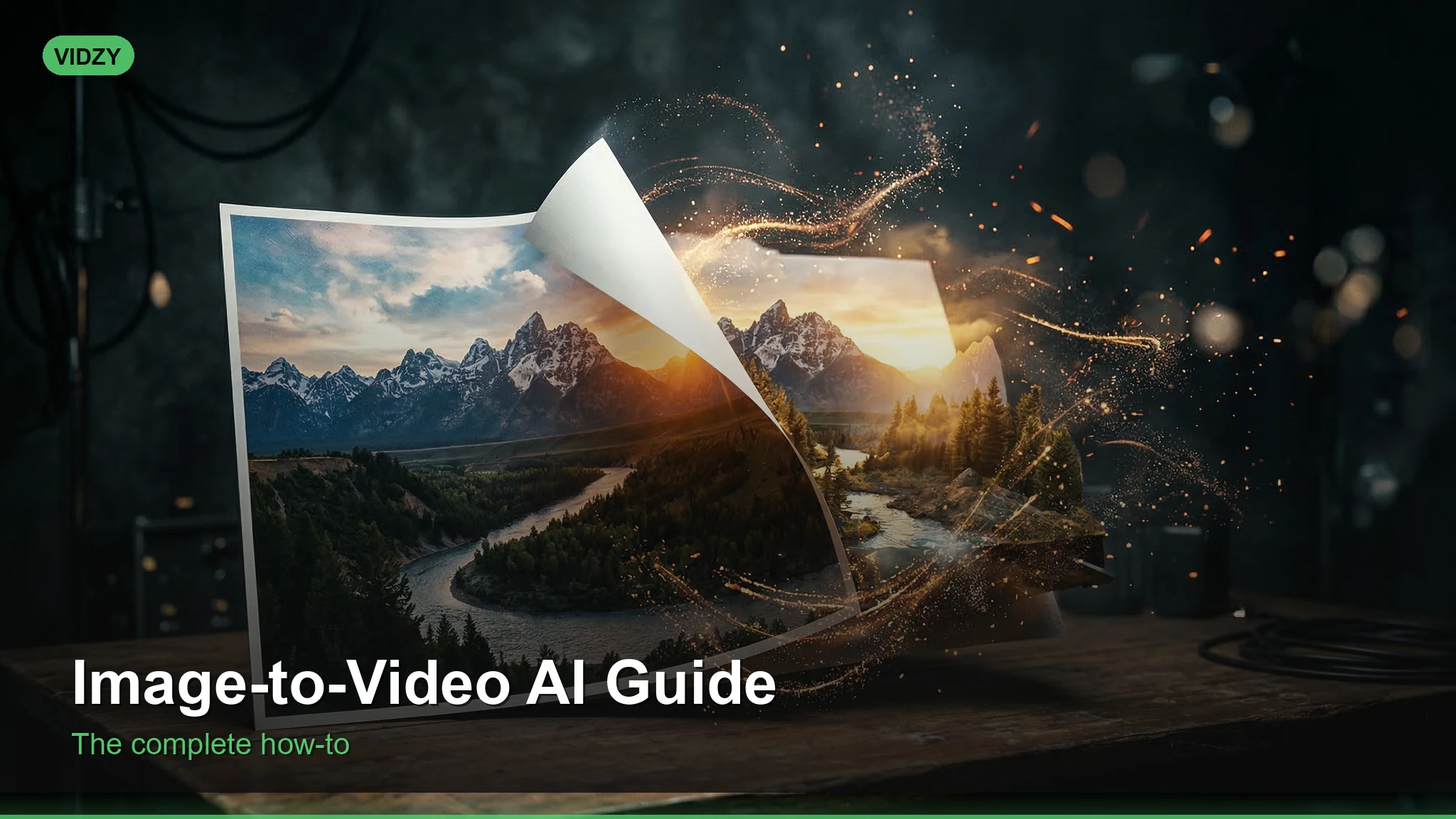
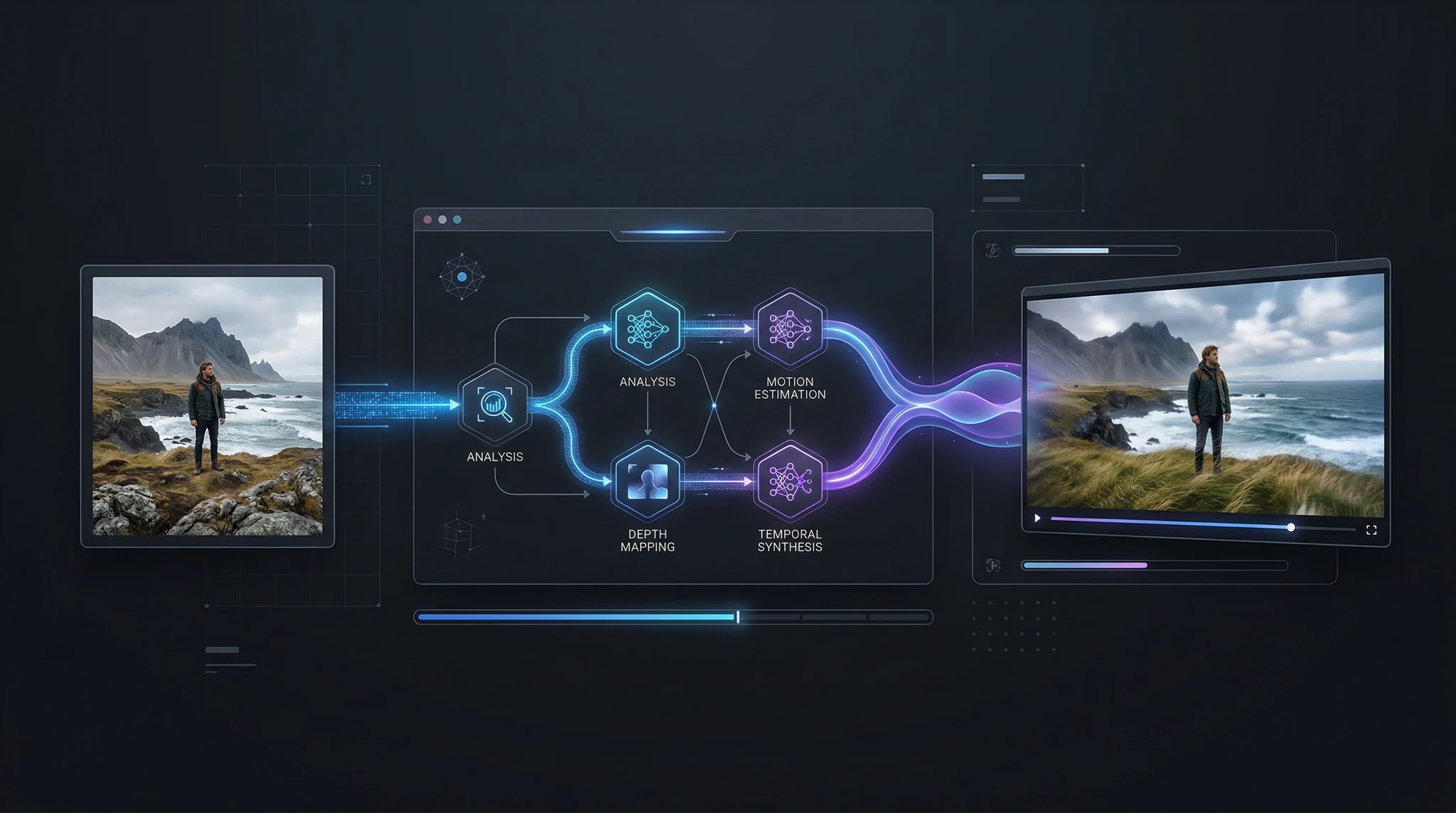
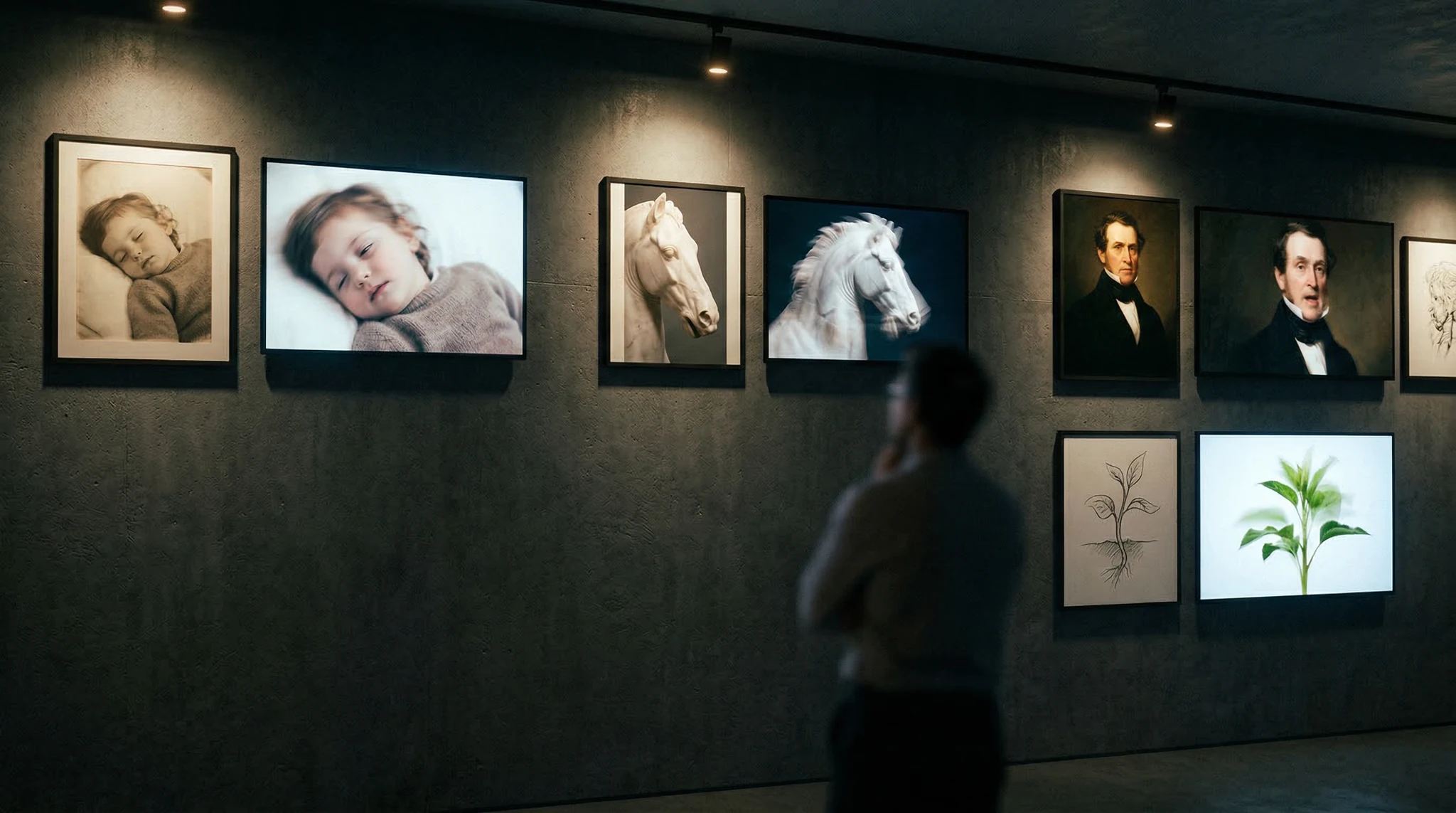
Image to video AI is the technology that transforms a static image into a moving video clip. Instead of starting from a text description alone, you provide an actual image as the starting frame and then instruct the AI on how to animate it. This approach solves the biggest challenge in AI video generation: consistency. When you start from a real image — a product photo, a portrait, a design mockup — the output maintains visual fidelity to your original asset.
This image to video AI guide covers everything from basic concepts to advanced techniques, showing you how to get the best results from this powerful technology.
How Image-to-Video Differs from Text-to-Video
Understanding the difference is crucial for choosing the right approach:
Text-to-Video:
Creates entirely new visuals from a text description
Maximum creative freedom
Less control over exact appearance
Best for conceptual and abstract content
Image-to-Video:
Animates an existing image you provide
Preserves visual identity, colors, and composition
More predictable and controllable output
Best for product shots, branded content, and photo animation
In practice, the most effective creators use both. Text-to-video for ideation and creative exploration, image-to-video for brand-consistent, polished final content.
Step 1: Prepare Your Source Image
The quality of your output depends heavily on your input image. Follow these guidelines:
Image Requirements
Resolution: Use the highest resolution available. Minimum 1024×1024 pixels
Format: PNG or JPG. PNG preferred for images with transparency
Composition: Leave space in the frame for motion — do not crop too tightly
Clarity: Sharp, well-lit images produce better animations than blurry or dark ones
Subject position: Center your main subject or position it where you want motion to originate
Best Source Image Types
Product photography — clean product shots on white or styled backgrounds
Portraits — headshots, fashion photography, character art
Landscapes — scenic photos you want to bring to life with cloud or water motion
AI-generated images — create the perfect static image first, then animate it
Step 2: Choose Your AI Model
Different models excel at different types of image-to-video generation. Through Vidzy, you can access the leading models:
Veo 3.1 — excellent at natural motion, realistic camera movements, and maintaining subject consistency. Best all-around choice for most image-to-video tasks
Sora 2 — strong at cinematic motion, creative transformations, and complex scene animation
Wan 2.5 — great for stylized content, anime-style animation, and artistic interpretations
Each model has different strengths, so experiment to find the best match for your specific content type.
Step 3: Write Effective Animation Prompts
Your prompt tells the AI how to animate your source image. Unlike text-to-video prompts, you do not need to describe what the image looks like — the AI can see it. Instead, focus entirely on the motion:
Prompt structure for image-to-video:[Camera movement] + [Subject motion] + [Environmental changes] + [Quality/style modifiers]
Camera Movement Keywords
Slow push in / dolly in — camera moves toward the subject. Creates intimacy and focus
Slow pull out / dolly out — camera moves away, revealing more of the scene
Orbital / arc around — camera circles the subject. Great for products
Tilt up / tilt down — camera pivots vertically
Pan left / pan right — camera pivots horizontally
Static / locked-off — camera stays still, only subject moves
Parallax — subtle depth movement creating a 3D effect from a 2D image
Subject Motion Keywords
Subtle breathing motion — for portraits, adds lifelike quality
Hair gently blowing — natural wind effect for portrait subjects
Select your AI model (Veo 3.1 recommended for first attempts)
Enter your motion prompt
Generate and review
Iterate on your prompt — adjust motion speed, camera movement, or add/remove details
Prompt Examples by Content Type
Product shot (cosmetics bottle):Slow orbital camera movement around the product. Soft light reflections moving across the glass surface. Subtle shadow movement. Cinematic product commercial quality.Portrait (headshot):Very subtle natural motion — gentle breathing, slight head turn toward camera, hair moving softly in a gentle breeze. Warm natural lighting remains consistent. Cinematic shallow depth of field.Landscape (mountain lake):Water gently rippling with soft reflections. Clouds slowly drifting across the sky. Trees slightly swaying in wind. Camera slowly pushes forward. Peaceful, serene atmosphere. Nature documentary quality.Food photography:Steam gently rising from the dish. Slight camera push in. Ambient light shifting subtly. Shallow depth of field with soft bokeh. Premium food commercial feel.Fashion flat lay:Gentle parallax camera movement creating depth effect. Fabric textures becoming more visible. Subtle light sweep across the items. Premium editorial photography feel.
Step 5: Advanced Image-to-Video Techniques
The Two-Step Method
For maximum control, use a two-step workflow:
Generate a perfect static image using text-to-image (Flux through Vidzy)
Feed that image into image-to-video with a motion prompt
This gives you complete control over both the visual content and the animation style.
Chaining Clips for Longer Videos
For videos longer than a single clip:
Generate your first clip from your source image
Take the last frame of that clip as a new source image
Generate a second clip from that frame with new motion instructions
Repeat for as many clips as needed
Edit them together in sequence
This frame-chaining technique creates remarkably consistent longer sequences.
Combining with Other AI Tools
Background removal → animate subject on custom backgrounds
AI upscaling → enhance low-res source images before animating
Style transfer → apply an artistic style to your image, then animate the styled version
Common Mistakes and How to Avoid Them
Too much motion — requesting dramatic movements often produces artifacts. Start subtle and increase
Conflicting instructions — “camera orbits left while panning right” confuses the AI. Keep camera movement simple and singular
Ignoring composition — if your subject is at the edge of the frame, push-in movements may cut them off. Ensure your source image has breathing room
Low-quality source images — blurry, dark, or heavily compressed images produce poor animations. Always use the best quality source available
Over-describing the image — the AI can see your image. Describing what is already there wastes prompt space. Focus on motion only
Use Cases for Image-to-Video AI
E-commerce — animate product photos for dynamic listings and ads
Real estate — bring property photos to life with subtle environmental animation
Social media — turn static posts into engaging video content
Memorial/tribute — animate old family photos with gentle motion
Art and illustration — bring paintings and drawings to life
Marketing — create video ads from existing brand photography
FAQ
What image formats work best?
PNG and high-quality JPG work best. PNG is preferred when your image has transparency or very fine details. Avoid heavily compressed JPGs, WebP, or very small images. Minimum recommended resolution is 1024×1024 pixels.
How long are image-to-video clips?
Most AI models generate clips between 4-10 seconds. For longer content, use the frame-chaining technique described above, or edit multiple clips together in a video editor.
Can I control the exact motion path?
You can guide motion with descriptive prompts (direction, speed, type of movement), but you cannot draw exact motion paths like in traditional animation. The AI interprets your instructions and applies realistic physics-based motion.
Does it work with illustrations and artwork?
Yes — image-to-video works with photographs, illustrations, digital art, paintings, and even screenshots. Artistic images often produce beautiful results because the AI can interpret and extend the artistic style into motion.
How is image-to-video different from a Ken Burns effect?
The Ken Burns effect simply zooms and pans across a static image. Image-to-video AI actually generates new frames with real motion — water flows, hair blows, clouds drift. It creates genuine animation, not just a camera move over a still photo.
Start Animating Your Images
Image-to-video AI bridges the gap between photography and videography. Every image you already own — product shots, brand photography, social media images — can become dynamic video content. Open Vidzy, upload an image, and start experimenting with motion prompts today.
Explore more AI video techniques on the Vidzy blog.
Elena Vasquez is a digital marketing consultant specializing in AI-powered content for small businesses. She helps brands leverage AI video and image tools to create professional marketing assets on any budget. She writes about use cases, social media strategies, and practical AI tutorials.
Master Nano Banana 2: The Complete Tutorial for Photorealistic AI Images Nano Banana 2 is quickly becoming one of the most talked-about AI image models in the creative community, and for good reason. This model delivers stunningly photorealistic outputs with a level of detail and coherence that rivals much larger, more resource-intensive generators. Whether you […]
Why AI Before After Content Dominates Social Media AI before after content is one of the highest-performing content formats on social media. The transformation reveal triggers an irresistible psychological response — people cannot scroll past a dramatic change. Fitness brands, beauty companies, home renovation businesses, and SaaS products all use before-and-after formats because they work. […]
Why AI Product Unboxing Videos Are a Marketing Superpower Unboxing videos generate billions of views annually. The anticipation and reveal format is psychologically compelling — and it sells products. But creating a traditional unboxing video requires having the physical product, a camera setup, good lighting, and editing skills. With AI video generation, you can create […]
Elena Vasquez
7 min read
Your Next Video Is 30 Seconds Away
Download Vidzy free, pick a template, and create your first video right now.