

The Complete Guide to Using Sora 2
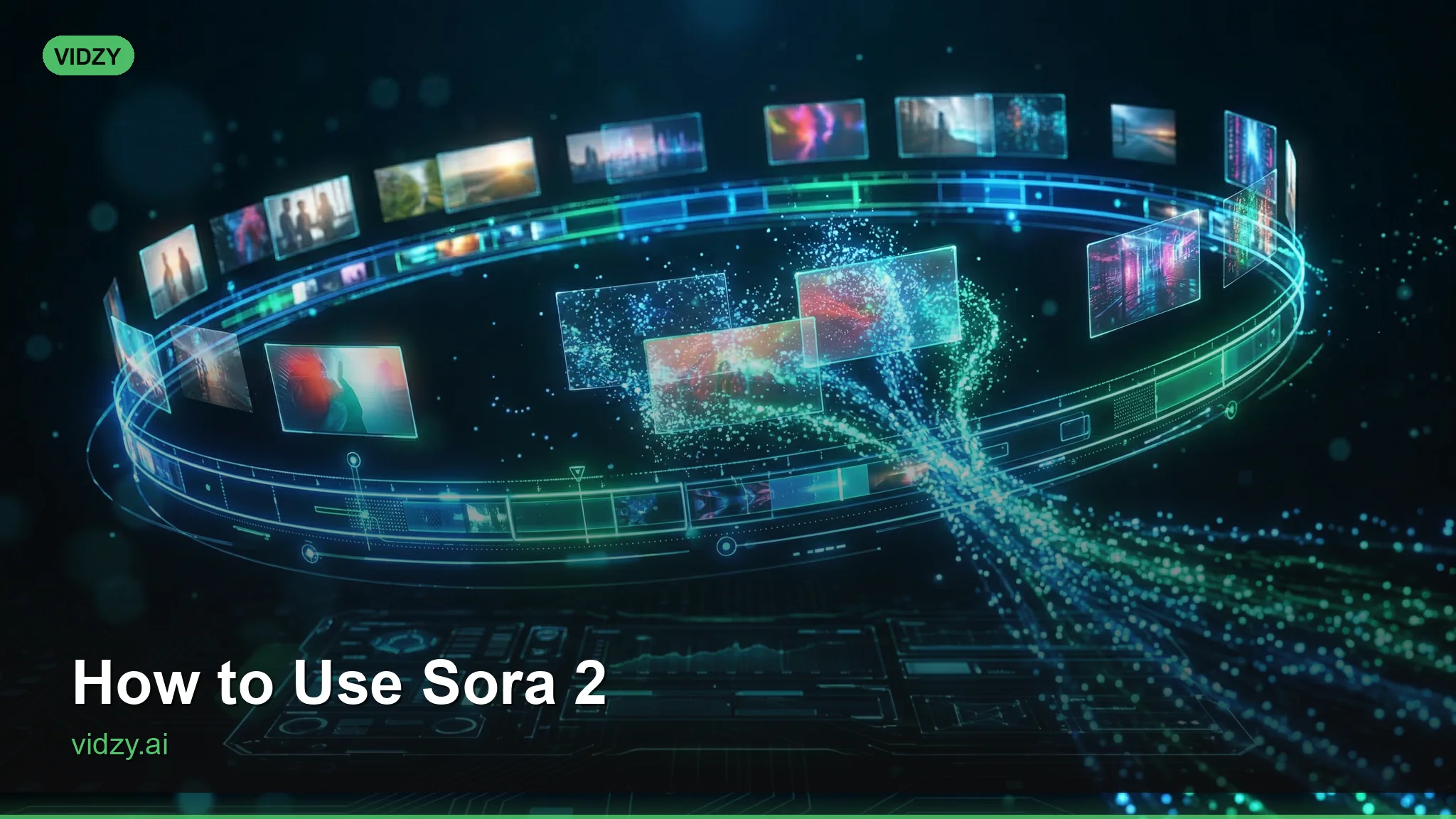
Sora 2 is one of the most powerful AI video generation models available today, capable of producing cinematic-quality video from text descriptions. Whether you are a beginner creating your first AI video or an experienced creator looking to push the boundaries, this guide on how to use Sora 2 covers everything you need — from basic prompts to advanced techniques that unlock its full potential.
What Is Sora 2?
Sora 2 is OpenAI’s second-generation video generation model. It creates video clips from text prompts with remarkable visual quality, temporal consistency, and understanding of physics and motion. Key capabilities include:
- Text-to-video generation — create video clips from written descriptions
- High visual fidelity — cinematic quality output with detailed textures and lighting
- Physics understanding — realistic motion, gravity, reflections, and material properties
- Style versatility — can generate in virtually any visual style, from photorealistic to animated
- Multiple aspect ratios — supports 16:9, 9:16, and 1:1 formats
You can access Sora 2 through Vidzy, which provides an intuitive interface for generation and prompt management.
Beginner Level: Your First Sora 2 Prompts
Basic Prompt Structure
A Sora 2 prompt has three essential components:
[Subject] + [Action/Scene] + [Visual Style]
Example basic prompts:
A golden retriever running through a field of sunflowers on a sunny day. Warm, cheerful lighting.
A coffee cup sitting on a wooden table by a rain-streaked window. Cozy, moody atmosphere.
Aerial view of ocean waves crashing on a rocky coastline at sunset. Cinematic, dramatic lighting.
Start simple. Sora 2 interprets basic prompts surprisingly well. You do not need complex descriptions to get good results — clarity and specificity matter more than length.
Your First Generation Workflow
- Open Vidzy and select Sora 2 as your model
- Choose your aspect ratio (16:9 for landscape, 9:16 for vertical social content)
- Type a clear, descriptive prompt
- Generate and review the output
- Iterate — adjust your prompt based on what you see and regenerate
Common Beginner Mistakes
- Prompts too vague: “A nice video” gives the AI nothing to work with. Be specific about subject, setting, and mood
- Too many subjects: “A dog and a cat and a bird and a fish in a room with a table and a chair” overwhelms the model. Focus on one or two main subjects
- Forgetting lighting: Lighting descriptions dramatically improve output quality. Always include at least basic lighting direction
Intermediate Level: Crafting Professional Prompts
The Extended Prompt Formula
Level up with this comprehensive structure:
[Camera shot/movement] + [Subject description] + [Action] + [Environment/setting] + [Lighting] + [Color palette] + [Mood/atmosphere] + [Quality modifiers] + [Aspect ratio]
Example intermediate prompt:
A slow dolly-in shot of a woman in a red dress walking through a dimly lit jazz club. Saxophone player visible in soft focus background. Warm amber and deep blue lighting, smoky atmosphere. Cinematic film grain, anamorphic lens. Moody, noir atmosphere. 16:9 aspect ratio.
Camera Language Sora 2 Understands
Sora 2 responds well to cinematography terminology:
Shot types:
- Extreme wide shot / establishing shot — full environment
- Wide shot — subject in full view within setting
- Medium shot — subject from waist up
- Close-up — face or detail fills frame
- Extreme close-up / macro — tiny detail fills frame
Camera movements:
- Dolly in/out — smooth forward/backward
- Tracking / following — camera follows subject
- Pan left/right — horizontal pivot
- Tilt up/down — vertical pivot
- Crane / jib — vertical elevation change
- Orbital / arc — circles around subject
- Steadicam / gimbal — smooth handheld movement
- Static / locked-off / tripod — no movement
Lens types:
- Wide-angle lens — dramatic perspective, exaggerated depth
- Telephoto / long lens — compressed depth, isolates subject
- Anamorphic lens — cinematic look with oval bokeh and lens flares
- Macro lens — extreme close-up capability
- Tilt-shift lens — miniature effect
Lighting Mastery
Lighting is the single most important element for professional-looking output:
- Golden hour — warm, low-angle sunlight. Universally flattering
- Blue hour — cool, twilight lighting. Moody and atmospheric
- Rim lighting / backlight — light behind the subject creating a glowing edge
- Rembrandt lighting — classic portrait lighting with triangle of light on cheek
- Neon lighting — colorful, urban, cyberpunk aesthetic
- Chiaroscuro — extreme contrast between light and dark
- Soft diffused lighting — even, flattering, no harsh shadows
- Volumetric lighting — visible light rays through atmosphere (fog, dust, smoke)
Advanced Level: Pushing Sora 2 to Its Limits
Style References
Reference specific visual styles or filmmakers to guide the AI:
- “Shot on 35mm film” — organic film grain and color response
- “ARRI Alexa footage” — premium digital cinema quality
- “VHS tape aesthetic” — retro, lo-fi, nostalgic
- “Wes Anderson style” — symmetrical composition, pastel palette
- “Blade Runner aesthetic” — dark sci-fi, neon, rain-soaked
- “Studio Ghibli style” — hand-drawn animation aesthetic
- “Documentary style” — handheld, natural, authentic feeling
Complex Scene Composition
For multi-element scenes, layer your descriptions:
A medium wide shot of a bustling Tokyo street at night during rain. Foreground: a person holding a transparent umbrella, seen from behind. Midground: neon signs reflecting in puddles on the wet pavement, pedestrians with colorful umbrellas. Background: towering buildings with glowing signage disappearing into misty sky. Camera slowly pushes forward. Cinematic, anamorphic lens with oval bokeh from neon lights. Rich color palette of cyan, magenta, and warm amber. Moody atmosphere with visible rain in volumetric light. 16:9.
Controlling Temporal Dynamics
Guide how the video unfolds over time:
- “Starting with… then transitioning to…” — describe beginning and end states
- “Slow motion” or “time-lapse” — control perceived speed
- “The camera reveals…” — guide what viewers see and when
- “Gradually…” — smooth transitions in lighting, color, or movement
Negative Guidance
Tell Sora 2 what to avoid:
- “No text or logos in the scene”
- “No people in the frame”
- “Avoid shaky camera movement”
- “No fast cuts or transitions”
Sora 2 Best Practices
- One concept per generation — do not ask for scene changes within a single clip
- Be specific about motion — “walking slowly” vs “running” vs “standing still” gives very different results
- Include physical details — materials, textures, and surfaces help the AI render convincingly
- Reference time of day — dawn, noon, dusk, and midnight produce radically different lighting
- Generate multiple variations — create 3-5 versions and pick the best
- Iterate on winners — when a prompt works well, refine it further rather than starting from scratch
Sora 2 Use Cases
- Marketing and advertising — product showcases, brand videos, social media content
- Music videos — cinematic visuals synced to audio
- Short films — narrative scenes, atmospheric shots, establishing sequences
- Stock footage — custom B-roll for any project
- Education — visual explanations, historical recreations, concept illustrations
- Social media — eye-catching content for every platform
FAQ
How long are Sora 2 video clips?
Sora 2 typically generates clips between 5-20 seconds depending on the platform and settings. For longer content, generate multiple clips and edit them together. This approach actually gives you more creative control than a single long generation.
Can Sora 2 generate text in videos?
Sora 2 can render text but with varying accuracy. For reliable text, generate your visual content without text and add typography in post-production using a video editor. This gives you precise control over font, placement, and animation.
How do I get consistent characters across multiple clips?
Describe your character in identical detail across all prompts — clothing, hair color, body type, distinctive features. Use the same style and lighting descriptors. While consistency is not guaranteed, detailed matching descriptions significantly improve it.
What is the difference between Sora 2 and Veo 3.1?
Both are top-tier video generation models. Sora 2 tends to excel at cinematic, stylized content and creative scenarios. Veo 3.1 is often stronger for realistic motion and natural scenes. Both are available through Vidzy — experiment with both to find which works best for your specific use case.
How do I improve my Sora 2 results?
Three strategies: (1) Study cinematography — learn shot types, lighting, and composition. Your prompts will improve dramatically. (2) Analyze your best outputs — identify what made your best generations work and replicate those prompt patterns. (3) Build a prompt library — save your winning prompts and iterate on them over time.
Start Mastering Sora 2
Learning how to use Sora 2 effectively is a skill that pays dividends across every creative project. Start at the beginner level, work through intermediate techniques, and gradually incorporate advanced methods as you build confidence. Open Vidzy, start generating, and let your creativity drive the process.
Find more Sora 2 prompt guides and tutorials on the Vidzy blog.


![How to Make AI Headshots for LinkedIn [Step by Step]](https://getvidzy.com/wp-content/uploads/2026/03/post113-featured-768x432.webp "How to Make AI Headshots for LinkedIn [Step by Step] 6")