Create Stunning AI Time-Lapse Videos Without a Camera
Traditional time-lapse photography requires expensive equipment, hours of patience, and ideal conditions. Now you can generate breathtaking AI time lapse video content in minutes — sunrises over mountain ranges, flowers blooming, cityscapes transitioning from day to night, or seasons changing in a single shot. AI video generation has unlocked time-lapse content that would be physically impossible to capture with a real camera.
This tutorial walks you through creating professional AI time-lapse videos step by step, from concept to finished content.
What Makes AI Time-Lapse Special
AI time-lapse goes beyond what traditional cameras can achieve:
Impossible timeframes — compress centuries of change into seconds
Fantasy scenarios — buildings constructing themselves, forests growing from desert
Perfect conditions — no weather delays, no equipment failures
Any location — generate time-lapses from places you have never visited
Consistent quality — every frame is cinematic grade
Step 1: Choose Your Time-Lapse Category
The most visually compelling AI time lapse video categories include:
Natural Phenomena
Sunrise to sunset over landscapes
Cloud formations rolling across skies
Seasons changing on a single tree or landscape
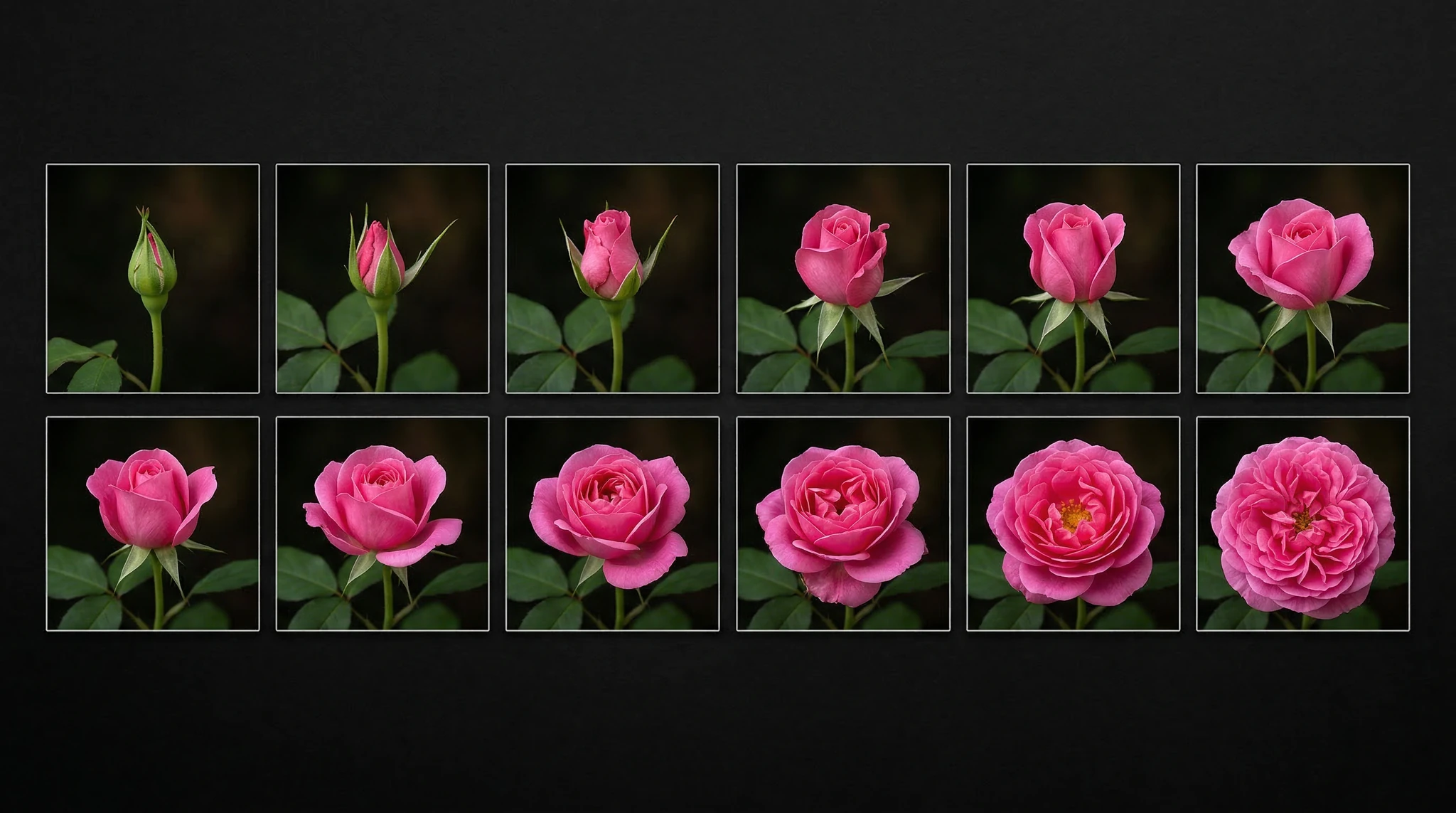
Flowers blooming in accelerated motion
Tides rising and falling on a beach
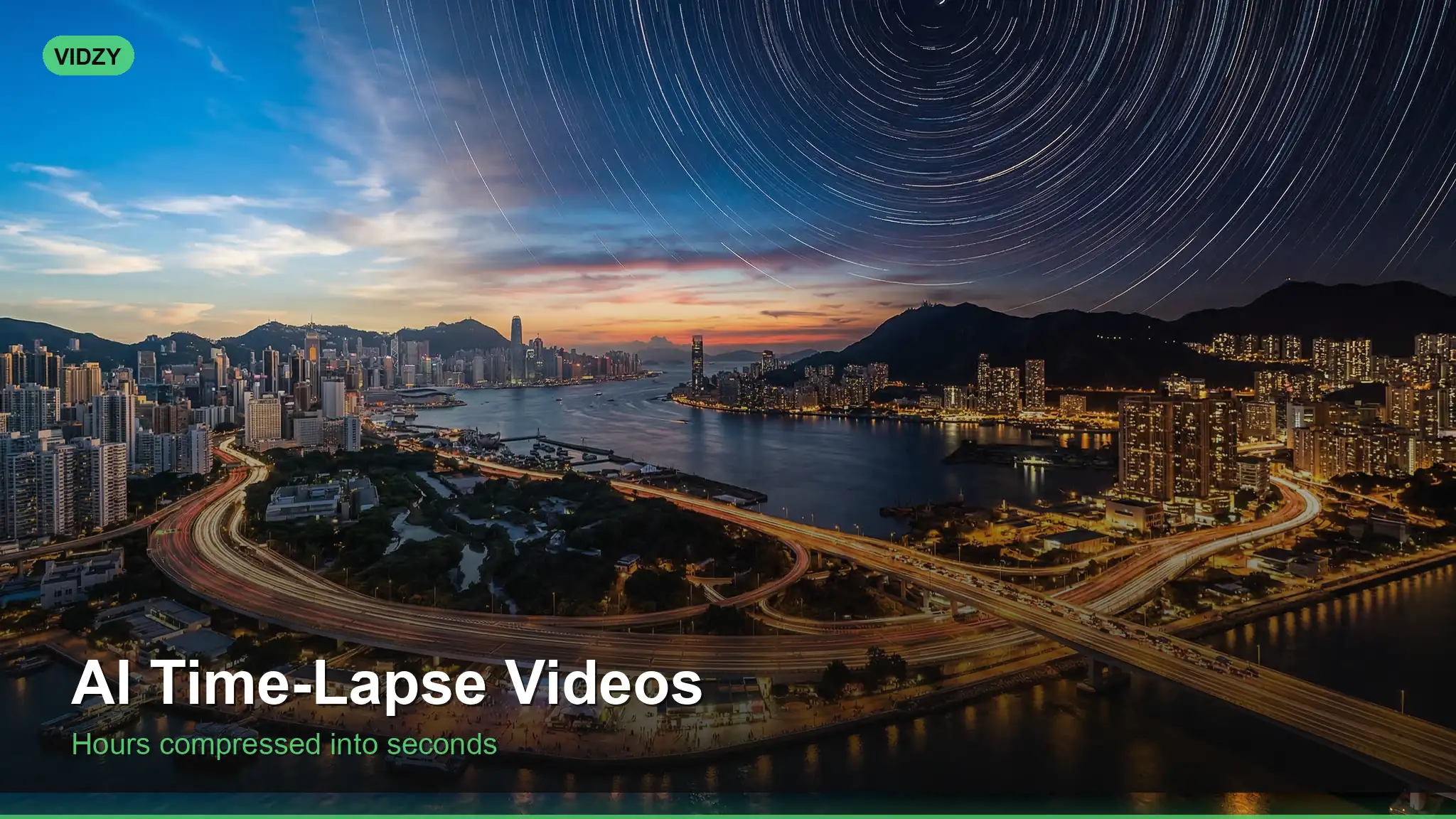
Stars wheeling across the night sky
Urban and Architectural
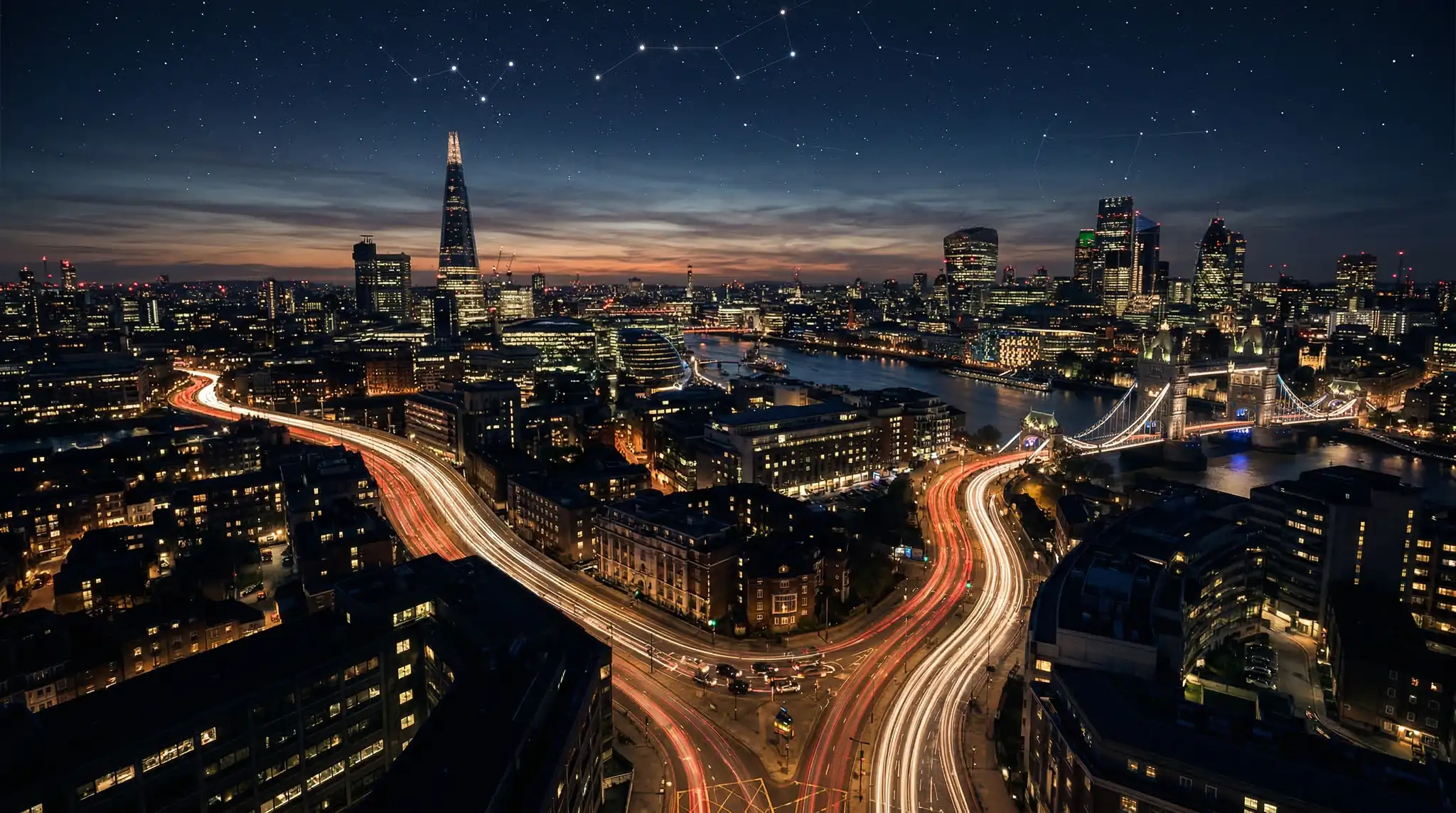
City transitioning from day to night
Building construction from foundation to completion
Rush hour traffic flowing through intersections
Neon signs illuminating as darkness falls
Abstract and Creative
Paint spreading and mixing on canvas
Ice melting into water
Fruit ripening and decomposing
Crystals forming and growing
Step 2: Craft Your Time-Lapse Prompts
The key to great AI time-lapse is describing the temporal progression clearly. Your prompt must communicate both the starting state and the ending state, plus the quality of the time-lapse motion.
Master prompt template:A time-lapse video of [subject] transitioning from [start state] to [end state]. Locked-off camera, perfectly still frame. [Duration description: "over the course of a day/season/year"]. Smooth accelerated motion. Cinematic quality, [lighting description]. [Aspect ratio].
Example Prompts
Mountain sunrise:A time-lapse video of a snow-capped mountain range transitioning from pre-dawn darkness to golden sunrise. Locked-off camera on a tripod. Stars fading as warm golden light creeps across the peaks. Clouds drifting rapidly across the sky. Hyper-realistic nature cinematography, 16:9 cinematic aspect ratio.City day-to-night:A time-lapse of a modern city skyline from late afternoon to nighttime. Locked-off wide shot from elevated viewpoint. Sun setting, shadows lengthening, then city lights gradually turning on building by building. Car headlight trails on streets below. Cinematic quality, rich color transition from warm golden to cool blue. 16:9.Flower blooming:An extreme close-up time-lapse of a red rose bud slowly opening into a full bloom. Locked-off macro camera, dark background. Petals unfurling gracefully in accelerated motion. Soft studio lighting with gentle rim light on petals. Smooth continuous motion. 9:16 vertical format.Season change:A time-lapse of a single oak tree in a meadow going through all four seasons. Starting with winter snow, then spring buds and green leaves, summer full canopy, autumn colors, back to bare winter branches. Locked camera, consistent framing. Natural daylight, cinematic quality. 16:9.
Step 3: Generate Your Time-Lapse Clips
Open Vidzy and use Sora 2 for the most natural time-lapse motion:
Start with your strongest concept — generate 3-5 variations to find the best one
Emphasize “locked-off camera” — real time-lapses use tripod-mounted cameras, and this instruction helps the AI keep the frame stable
Specify speed — “smoothly accelerated,” “rapidly compressed,” or “gentle progression” control the pacing
Generate at your target aspect ratio — 16:9 for YouTube, 9:16 for Reels/TikTok/Shorts
Pro Tips for Better Results
Add “hyperlapse” for moving camera — if you want the camera to slowly push in during the time-lapse, specify “smooth hyperlapse moving forward”
Reference real cinematography — “National Geographic nature documentary style” or “BBC Planet Earth cinematography” signal the quality level you want
Include atmospheric details — clouds, shadows, and light changes sell the time-lapse illusion
Avoid too much change — a single clear transformation (day to night, bud to bloom) reads better than trying to show everything at once
Step 4: Enhance in Post-Production
AI-generated time-lapses benefit from post-production polish:
Stabilize — even with “locked-off camera” prompts, AI clips may have subtle drift. Apply stabilization in your editor
Speed ramping — slow down the most dramatic moment (sunrise breaking, flower fully opening) for impact
Color grading — enhance the transition from warm to cool tones (or vice versa) for more dramatic effect
Add ambient sound — wind, birdsong, city hum. Time-lapses feel empty without audio
Loop if needed — for social media, a perfectly looping time-lapse (day-to-night-to-day) is mesmerizing
Step 5: Combine Multiple Time-Lapses
A single time-lapse clip makes great social content, but a compilation is even more powerful:
Compilation sequence ideas:
“24 Hours in [City]” — sunrise, morning rush, midday, sunset, nightlife, late night
“Four Seasons” — the same scene through spring, summer, autumn, winter
“From Seed to Table” — planting, growing, harvesting, cooking
“Building a [Subject]” — construction time-lapse from empty lot to finished structure
Generate each clip individually, then edit them into a seamless compilation with matching music.
Platform-Specific Time-Lapse Strategies
Instagram Reels: 15-30 seconds, vertical, trending audio, satisfying loop. Time-lapses are among the highest-performing organic Reels content
TikTok: 10-30 seconds, vertical, text overlay describing what’s happening. “Watch this mountain sunrise” hooks viewers instantly
YouTube Shorts: 30-60 seconds, can include multiple time-lapses. Educational angle: “How flowers actually bloom”
YouTube (long-form): 3-10 minute compilations of themed time-lapses with relaxing music. Great for ambient/background video channels
Desktop wallpaper engines: Perfectly looping time-lapses work as animated wallpapers
Advanced Techniques
Combining Time-Lapse with Hyperlapse
Add subtle camera movement to your time-lapse for a more dynamic feel. Include “slow forward dolly movement” or “gentle orbital camera motion” in your prompts alongside the time-lapse instruction.
Transition Time-Lapses
Use a time-lapse as a transition between scenes in a longer video. A sunset time-lapse is a natural way to signal “time passing” in a narrative video.
Split-Screen Time-Lapses
Generate two complementary time-lapses (city sunrise + mountain sunrise) and display them side by side for a compelling visual comparison.
Monetization Ideas
Stock footage — AI time-lapses sell well on stock platforms as background content
Ambient video channels — YouTube channels with relaxing time-lapse compilations earn ad revenue
Client work — real estate, travel, and hospitality brands pay for time-lapse content
Social media management — offer time-lapse content packages to local businesses
FAQ
How realistic are AI time-lapse videos?
With Sora 2, AI time-lapses are remarkably convincing, especially for natural phenomena like sunrises, cloud movements, and flower blooming. Complex urban scenes with many moving elements are more challenging but improving rapidly.
Can I create a looping time-lapse?
Yes — prompt for a cyclical transformation (dawn to dusk to dawn, or tide in and tide out). In post-production, you may need to blend the first and last frames for a seamless loop. Some video editors have loop-point tools specifically for this.
What is the best aspect ratio for time-lapse content?
Landscape (16:9) is traditional for time-lapse and works best for expansive scenes. Vertical (9:16) performs better on social media platforms and works well for tall subjects like buildings, trees, and waterfalls.
How do I add text or watermarks to AI time-lapses?
Add text overlays in your video editor after generation. Keep text minimal — time-lapses are visual-first content. A small watermark in the corner protects your work without distracting from the visuals.
Start Creating AI Time-Lapse Content
AI time-lapse videos are some of the most visually satisfying content you can create, and they perform incredibly well on every social media platform. With Vidzy, you can generate time-lapses of any scenario — real or imagined — in minutes. Start with a simple sunrise or flower blooming, then expand into more complex sequences.
Discover more AI video techniques on the Vidzy blog.
Elena Vasquez is a digital marketing consultant specializing in AI-powered content for small businesses. She helps brands leverage AI video and image tools to create professional marketing assets on any budget. She writes about use cases, social media strategies, and practical AI tutorials.
Design Stunning AI Animated Logos That Elevate Your Brand Identity A static logo communicates your brand. An animated logo performs it. Animated logos, also called logo reveals, motion logos, or logo stings, are short animations that bring your brand mark to life — and they have become essential for modern digital branding. They appear in […]
Professional Video Ads Without the Professional Price Tag Creating a single video ad used to cost hundreds or thousands of dollars — filming, editing, stock footage licensing, motion graphics. Now, you can create cheap AI video ads that look like they came from a production studio, all for under a dollar. The math is simple: […]
Why Nano Banana Excels at Text in Images If you have ever tried generating images with text using AI, you know the frustration — misspelled words, jumbled letters, and unreadable typography. Nano Banana text in images solves this problem. Nano Banana 2 is specifically designed to handle text rendering within AI-generated images with remarkable accuracy, […]
Elena Vasquez
7 min read
Your Next Video Is 30 Seconds Away
Download Vidzy free, pick a template, and create your first video right now.